How to create certificates of authenticity for prints with Markmy
Create certificates for limited-edition and open-edition prints in Markmy. Choose the right print number and size, then share or download each certificate.
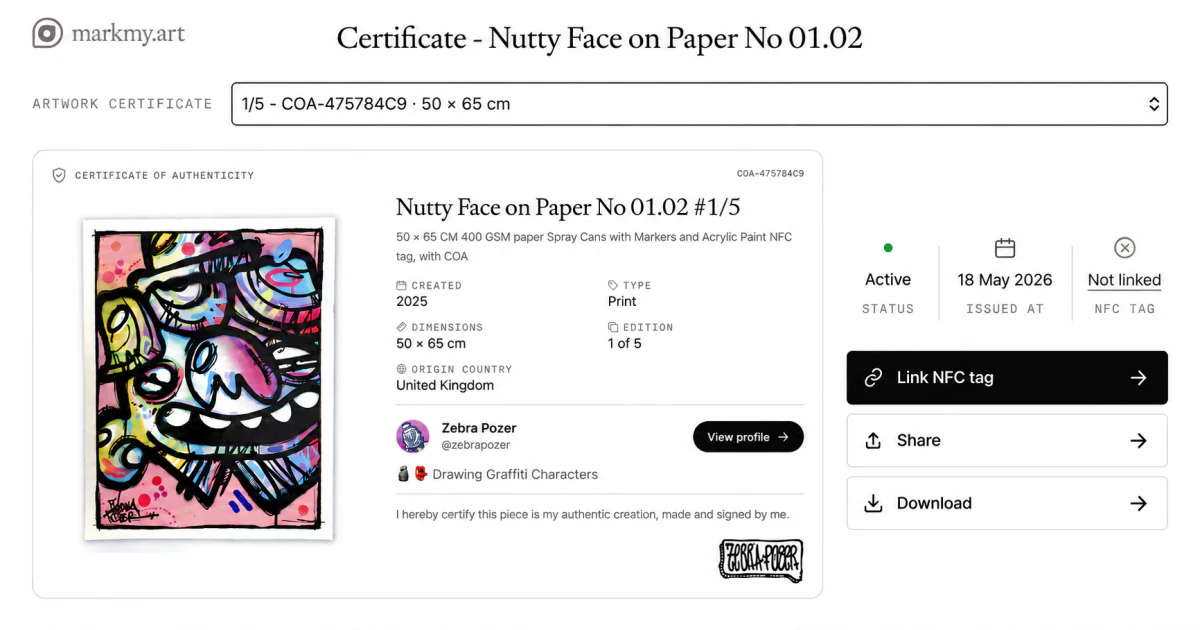
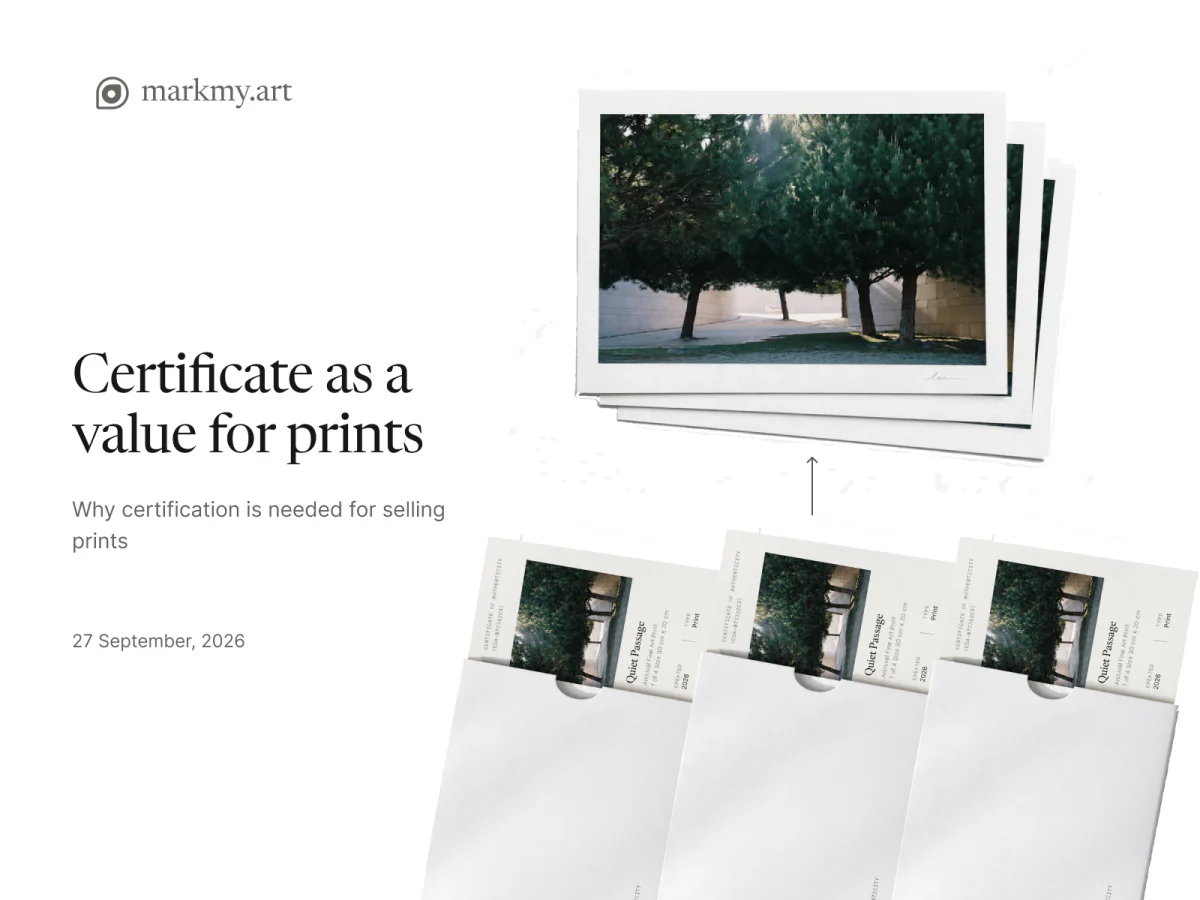
Give each physical print its own certificate. The artwork record describes the image or design; the certificate identifies one copy by its size and, for a limited edition, its number.
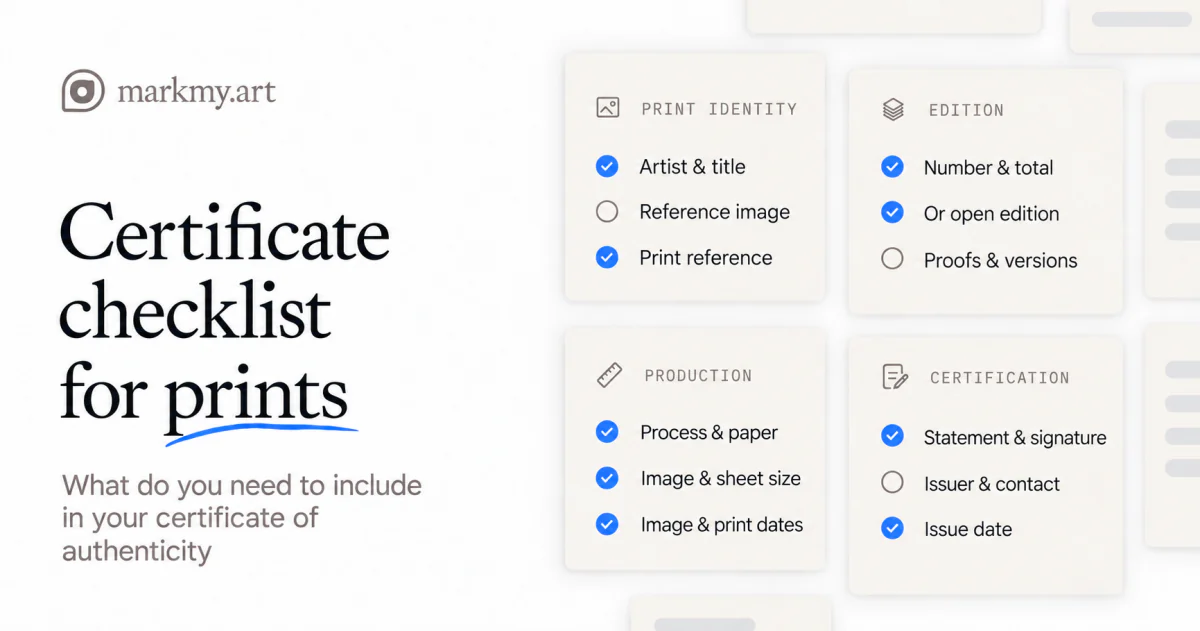
Start with the print certificate checklist.
Sign in to Markmy and check your artist name and signature before adding the edition. Digital certificates are free.
1. Add the print and choose its edition type
Open Artworks, choose Add artwork, and upload an image. Add the title, description, type, creation date, and dimensions. Use Add more dimensions if you offer several sizes.
- Limited: choose this for a fixed number of prints. Enter the total in Edition size. Markmy currently supports 2–100 prints across one limited-edition artwork.
- Open: choose this when there is no fixed total. Each issued print will have its own certificate code, without a limited-edition number.
- Unique: use this only for a single work, not an open edition.
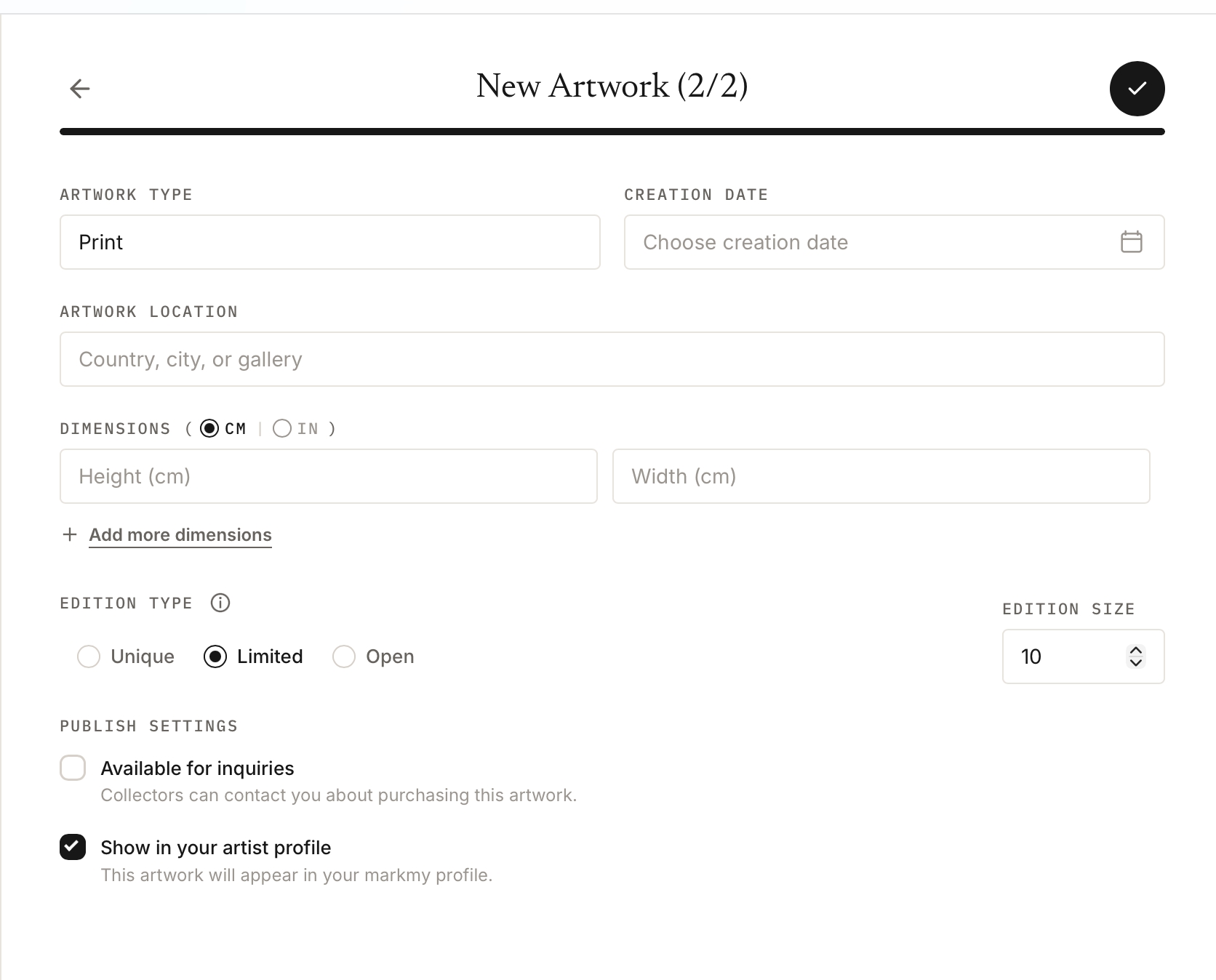
For a limited edition with several sizes, the total applies across the artwork. If you intend a separate numbered edition for each size, create a separate artwork record for each edition and explain its scope in the description.
Save the artwork. A limited edition with one fixed size gets its numbered certificates automatically. For open editions, multiple-size editions, or a limited edition without a set size, release each certificate separately.
2. Select or release the certificate for one print
Open Artwork certificate from the saved artwork. If certificates already exist, use the certificate selector to choose the code, edition number if applicable, and size that match the physical print.
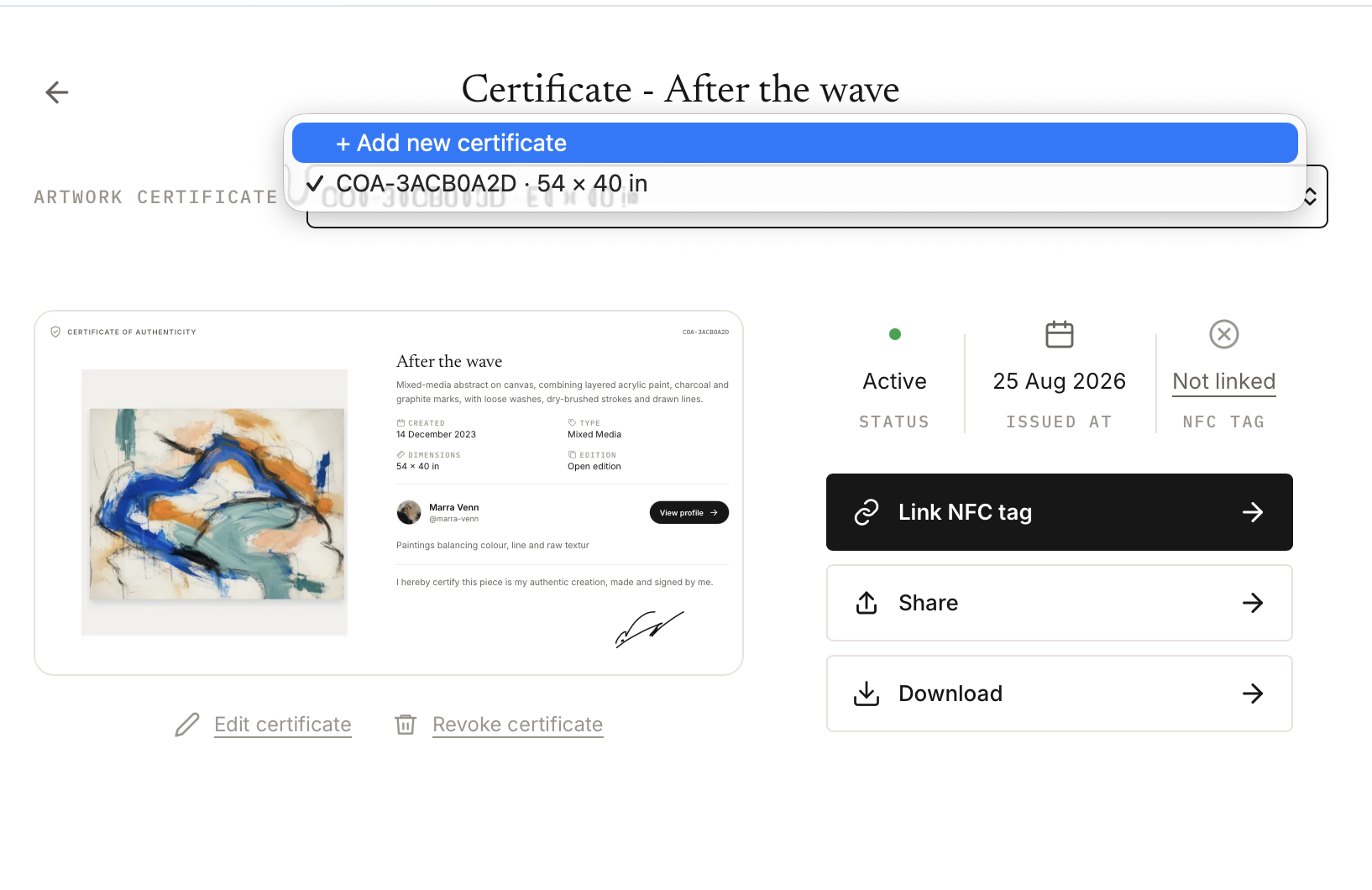
To issue an individual print, choose + Add new certificate. Then:
- For a limited edition, select the available Edition number.
- Choose Print size. For a size not listed, choose Custom size and enter Actual dimensions.
- Review the title, description, creation date, type, country, and Authenticity statement.
- Add paper, process, printing date, finish, or other facts about this copy in Details.
- Check the preview and choose Release certificate.
Check any details copied from your latest certificate. Use template lets you choose another certificate or return to Artwork details.
For print 7 of 30 at 30 × 40 cm, choose the certificate with that number and size. For an open edition, match the certificate code and size.
3. Share or download the right certificate
With the correct print selected, choose Share for its public link or Download for a PDF. Open the link and check the edition number, certificate code, dimensions, and Details before handing it over.
Use the same certificate reference in your studio records and on the print’s packaging. Certificate counts show registered prints, not sales.
If a release is awaiting confirmation, use Retry release to check that attempt. Do not start another certificate for the same print just because the first request was interrupted.
Optional: link an NFC tag to that print
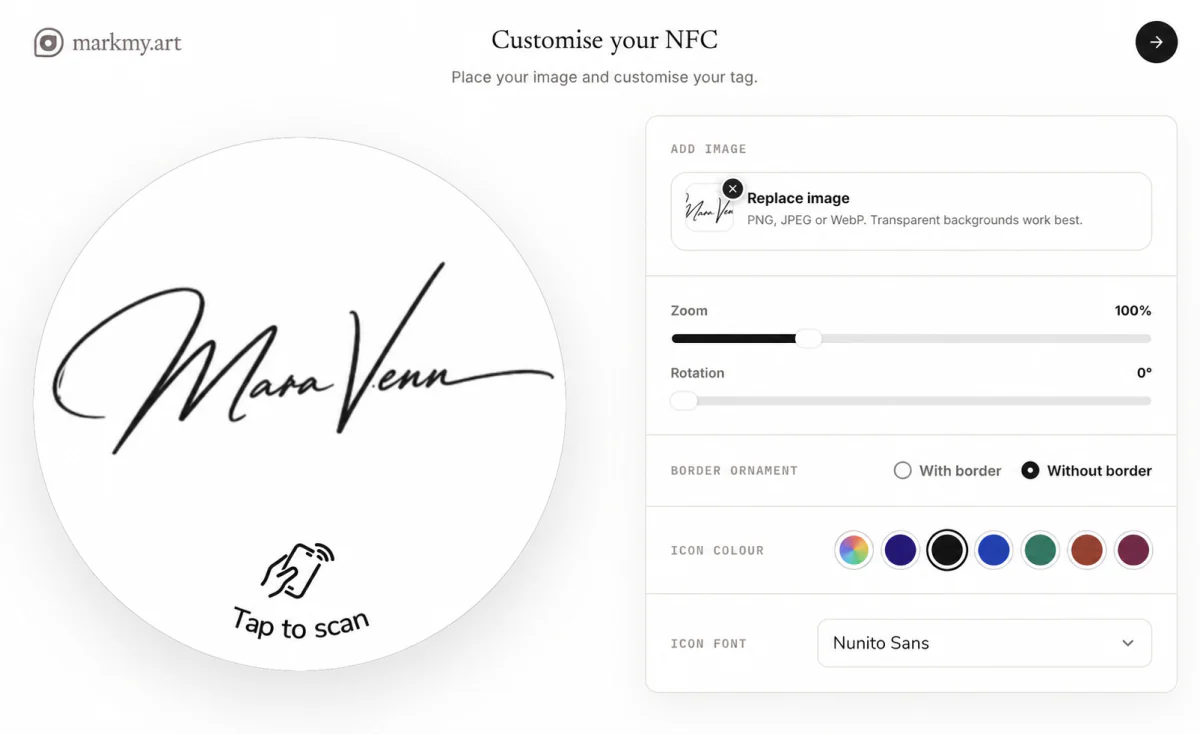
Select the individual print before choosing Link NFC tag. Check the number and size: one tag connects permanently to one certificate.
Follow the NFC certificate setup guide when the print and its certificate are ready.