How to create an NFC certificate of authenticity with Markmy
Link a Markmy NFC tag to an artwork or print certificate. Select the right record, tap the tag, confirm the permanent link, and test it before handover.
What you need
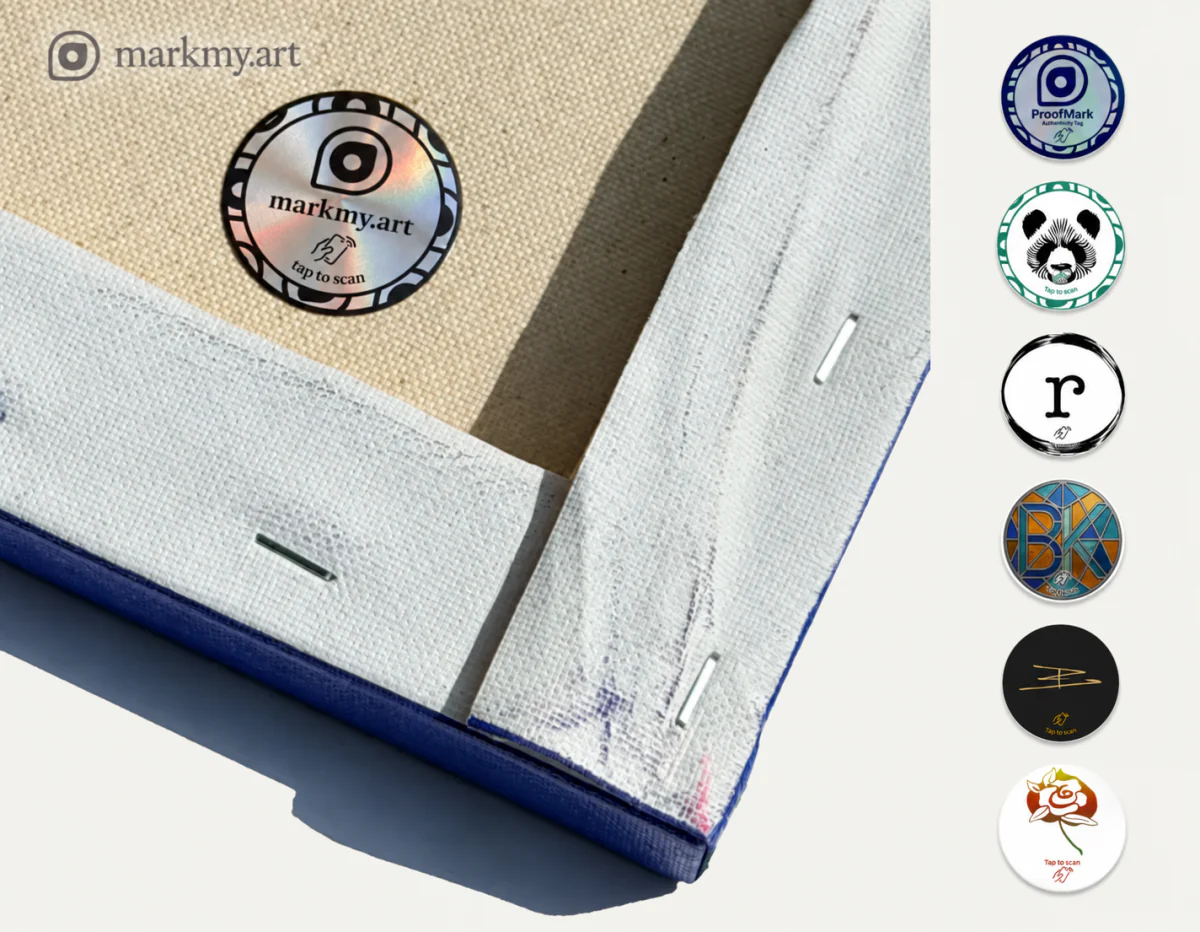
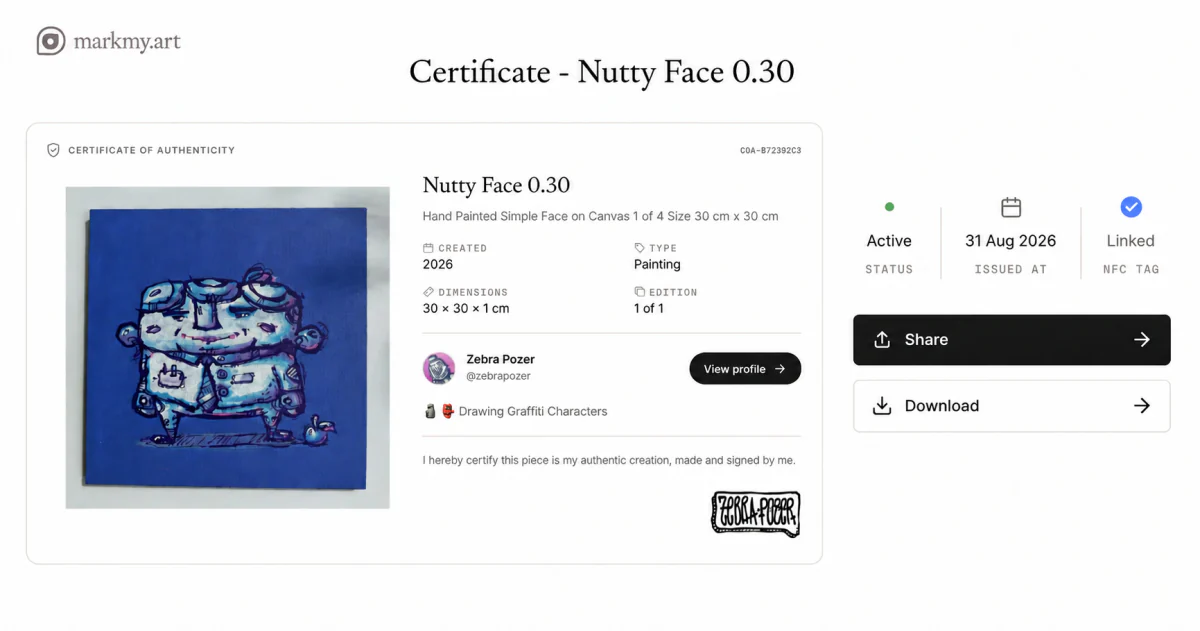
An NFC certificate is a digital certificate linked to a physical NFC tag. Tap the tag with a compatible phone to open the certificate.
- An active certificate for the artwork or individual print.
- An unused Markmy NFC tag.
- A phone that can read NFC tags, with an internet connection.
- Access to the Markmy account that owns the certificate.
1. Choose the exact certificate
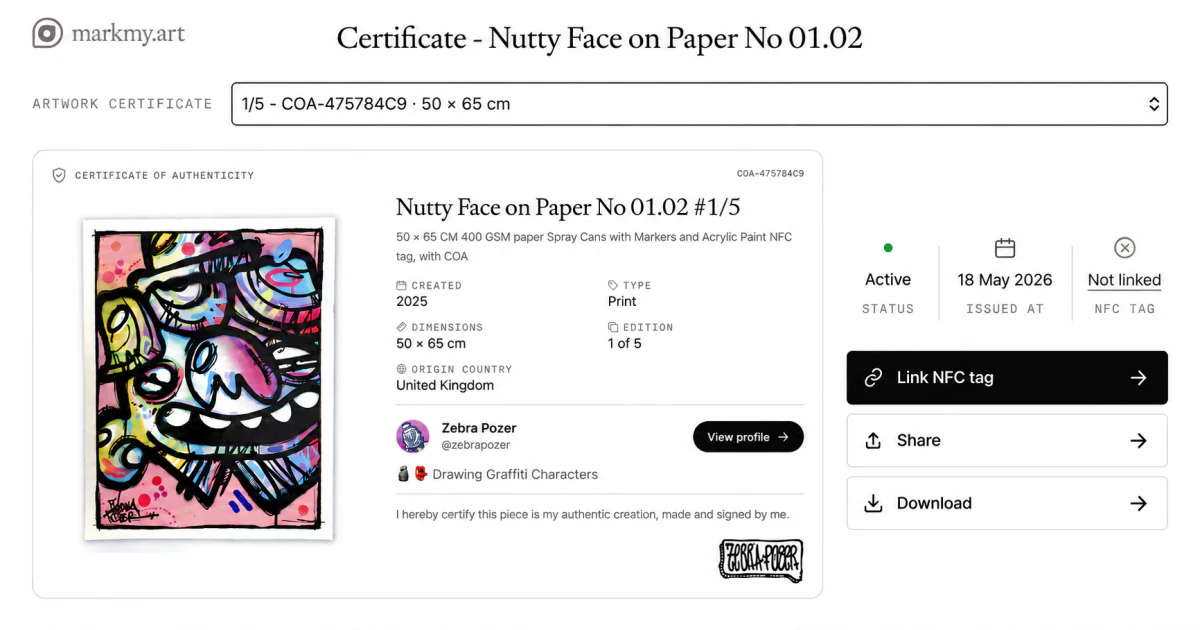
Open the artwork and go to Artwork certificate. For an edition, select the individual print. Compare its edition number, dimensions, and certificate code with the copy in front of you.
Choose Link NFC tag. Your selected certificate must be active and not already linked to a tag.
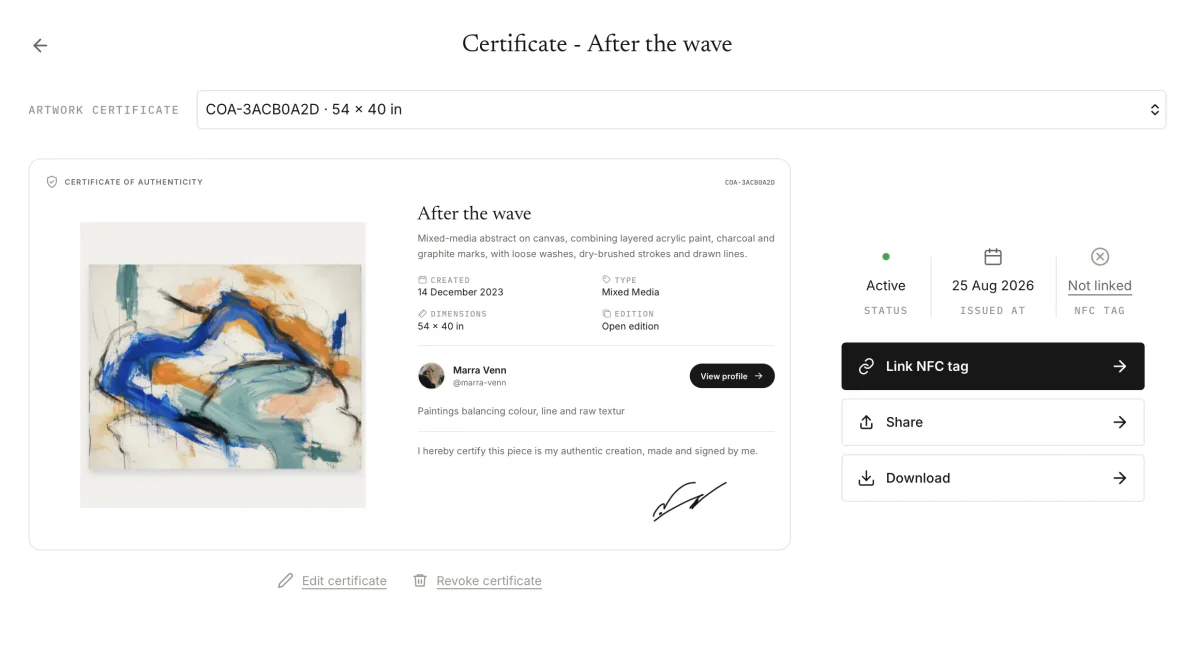
If you are preparing several prints, finish one tag and print at a time. Two copies can look identical and still need different certificates.
2. Tap the unused tag
Hold your phone near the tag and open the website notification. Keep the tag loose while you set it up so you can check the connection before choosing its final position.
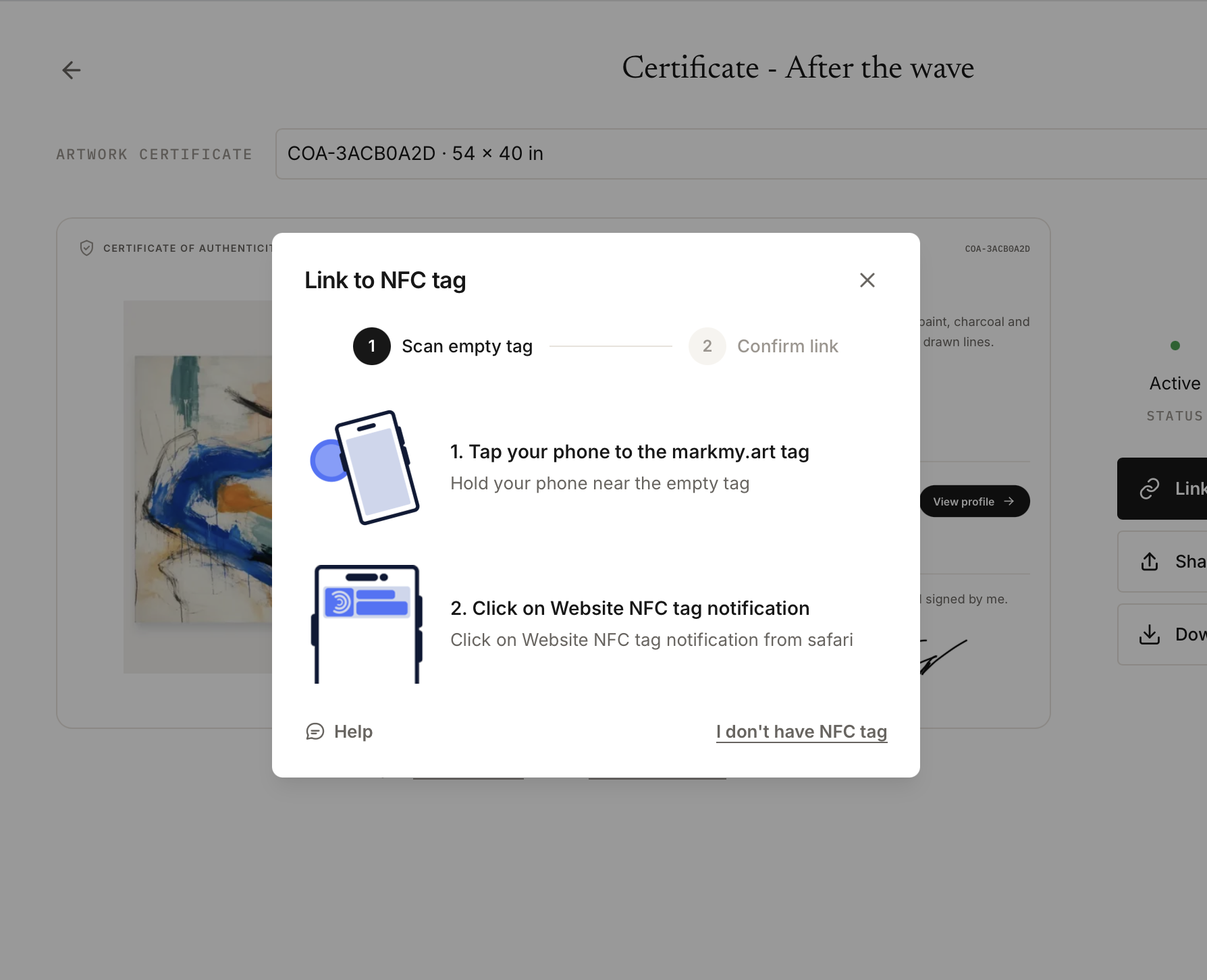
If asked, sign in on the phone with the same account. Your phone’s browser may need its own login even if you are signed in on your laptop.
You have ten minutes to complete the link. If the selection expires, choose Link NFC tag again.
3. Check and confirm the link
The confirmation shows the artwork and selected certificate. Check the title, print size, and edition number or certificate code again. Choose Assign tag to edition only when they match.
After confirming, wait for Tag linked successfully, then choose Done.
4. Test the tag and keep it with the work
Tap the tag again. It should now open the public certificate rather than the linking screen. Check it in a browser where you are signed out to see what a collector will see.
Compare the public certificate with the work. For prints, check the number or code and the dimensions.

Choose a place that stays with the work and is easy to reach with a phone. For a print, that may be its protective sleeve or the certificate kept with it. Avoid sticking anything directly to a delicate print surface. Test the tag again in its final position.
Tell the collector where the tag is. Send the certificate link too, so they can open it without scanning.