Collectors: inquiries, buy requests, subscribers and CSV import
Reply to artwork inquiries and buy requests in one inbox, find people in your address book, and see which new works your subscribers will receive by email.
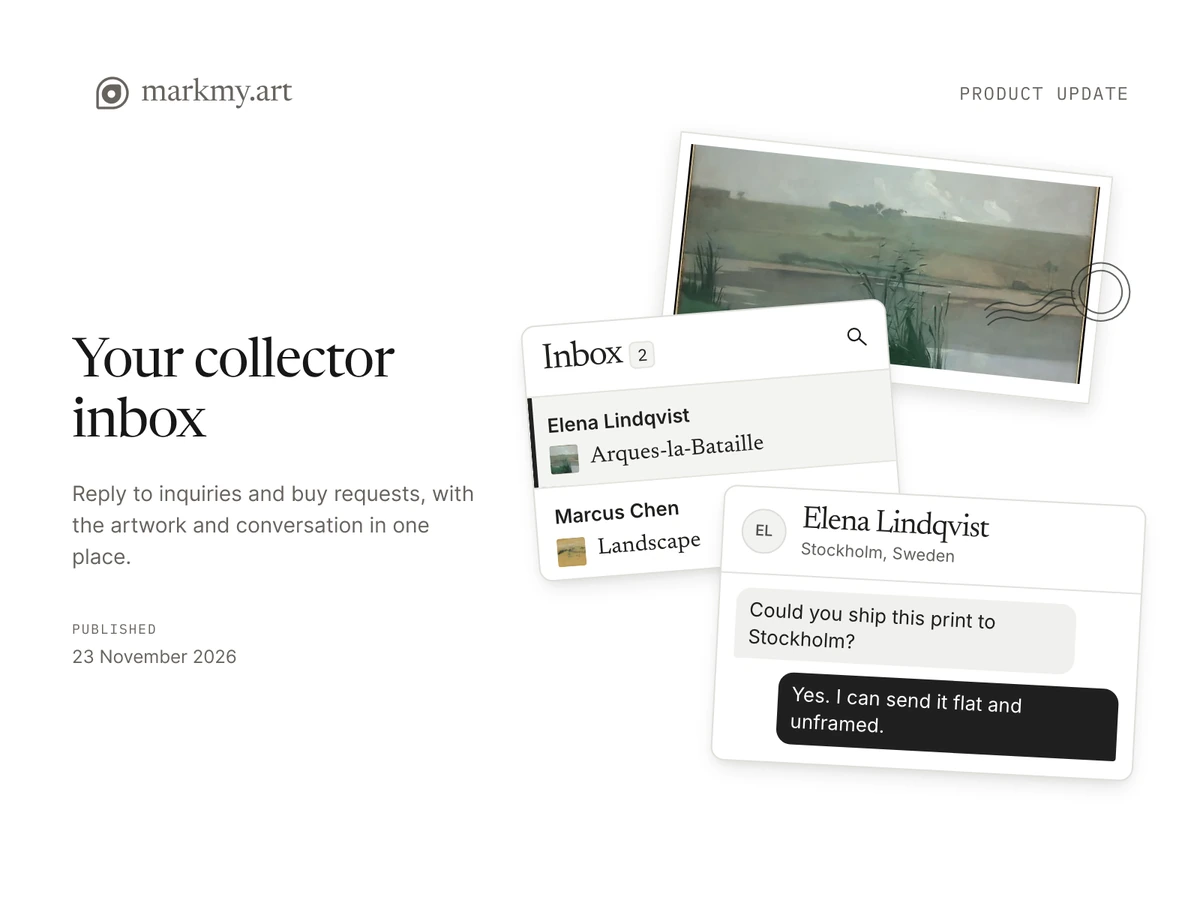
The Inquiry, buy request and Subscribe buttons on your public artist profile all feed into Collectors. Open it in your workspace to pick up a conversation about a particular work, find a contact, or check the next artwork email.
One inbox for inquiries and buy requests
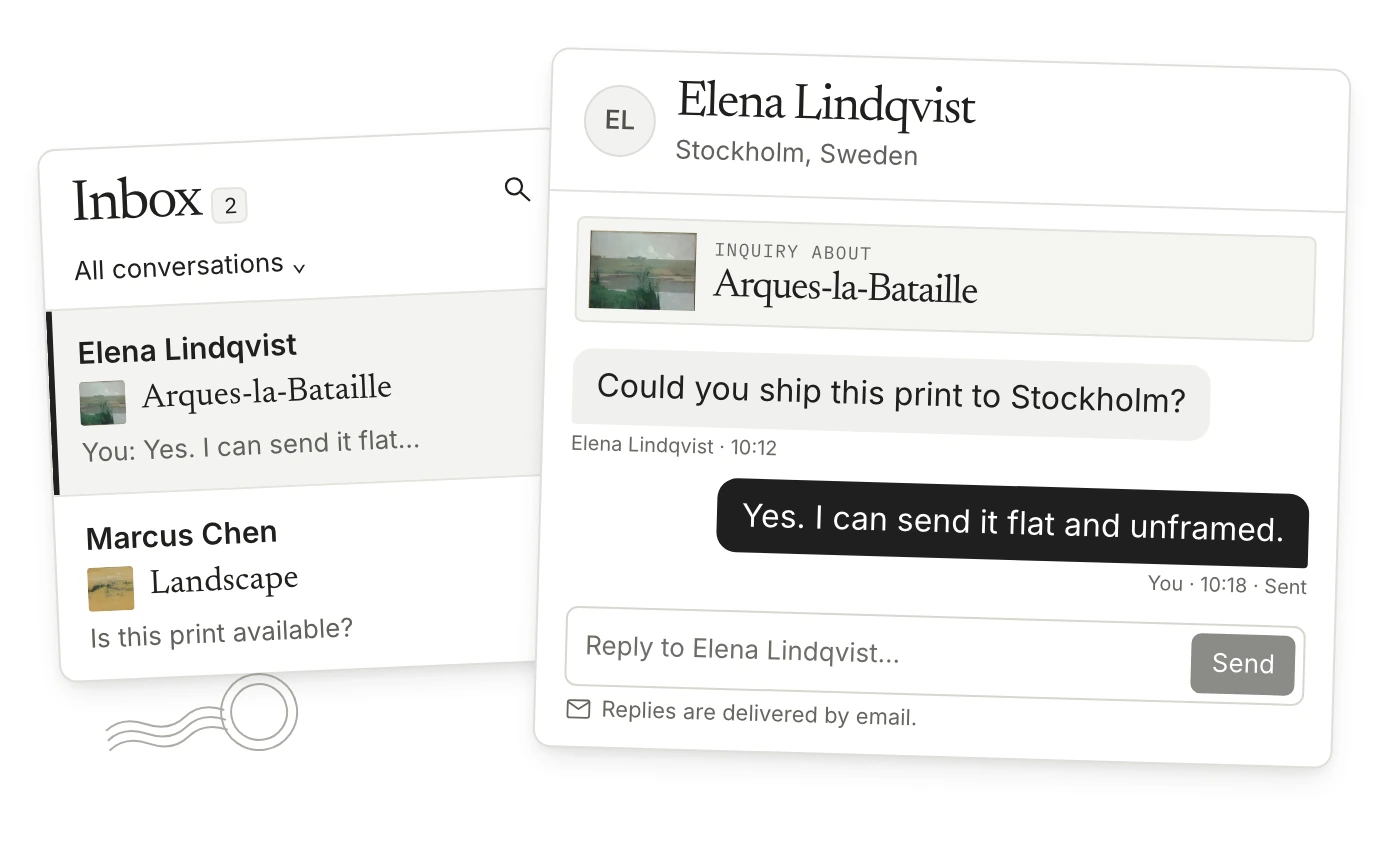
Select a name in the inbox to open the conversation. The artwork card below the collector’s name takes you to the work they asked about. Their messages appear on the left and your replies on the right.
Reply from Markmy and your message reaches the collector by email. When they answer, their reply appears in the same thread. Search the inbox by collector, artwork title or a phrase from a message, or open Archived to revisit a finished conversation.
- A buy request shows the requested size and shipping destination when provided. You can send a Stripe, PayPal or other payment link with a note, or decline the request. Markmy takes no commission on the sale.
- If several people have requested the same piece, you can see that in the thread. Once it sells, open the artwork record to mark it sold.
Your subscribers and collector list in one place
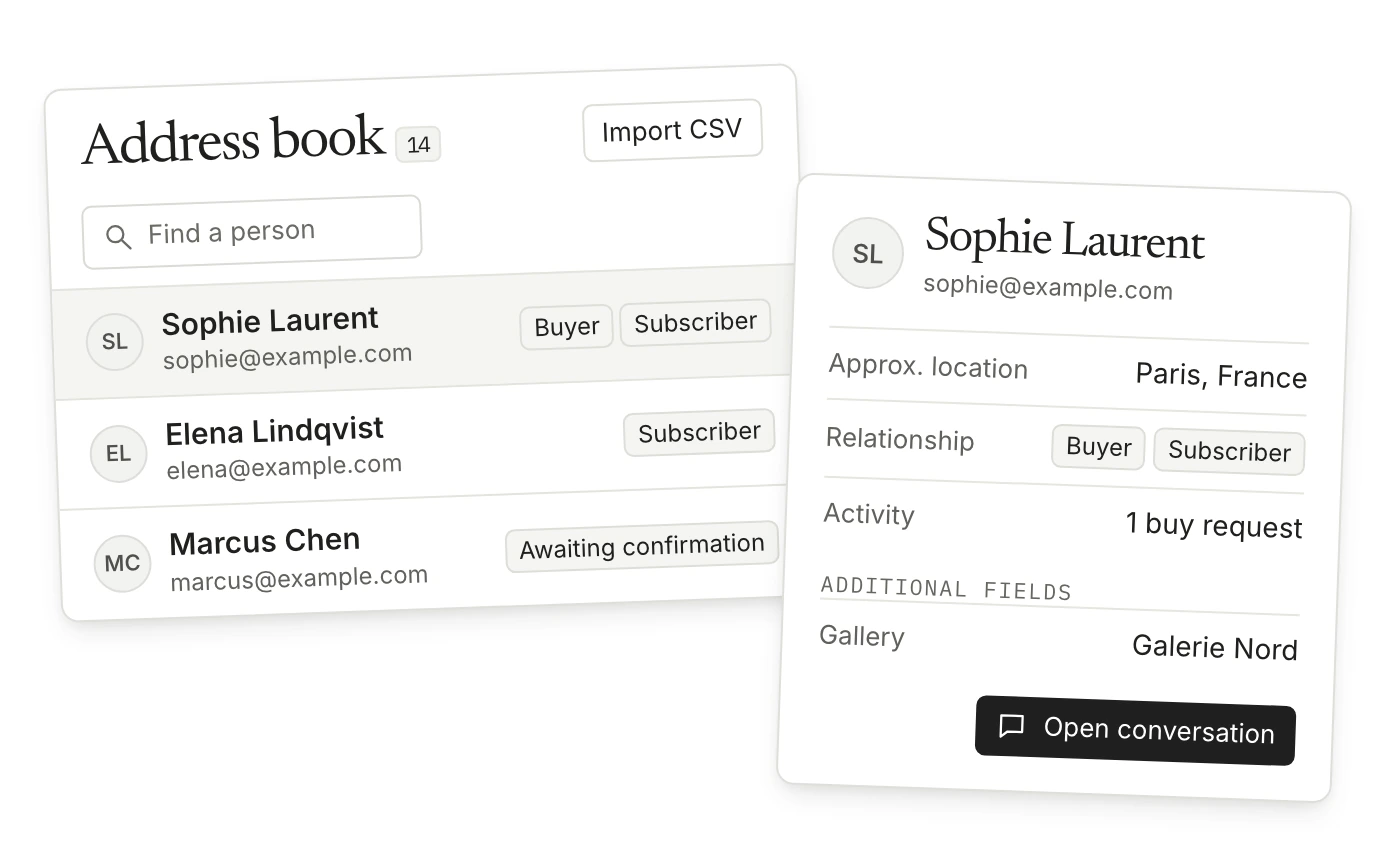
The Subscribers tab is your address book. It includes people who subscribed, asked about a work, requested to buy one, or came from a CSV import. Search by name or email, or filter the list to see buyers, subscribers or people who inquired.
Open a person to see their relationships, activity and any extra fields from your import. Open conversation takes you back to their messages. Someone who signs up on your public profile appears as Awaiting confirmation until they confirm by email. Asking about a work alone doesn’t subscribe them.
Bring your existing collector list from any CSV
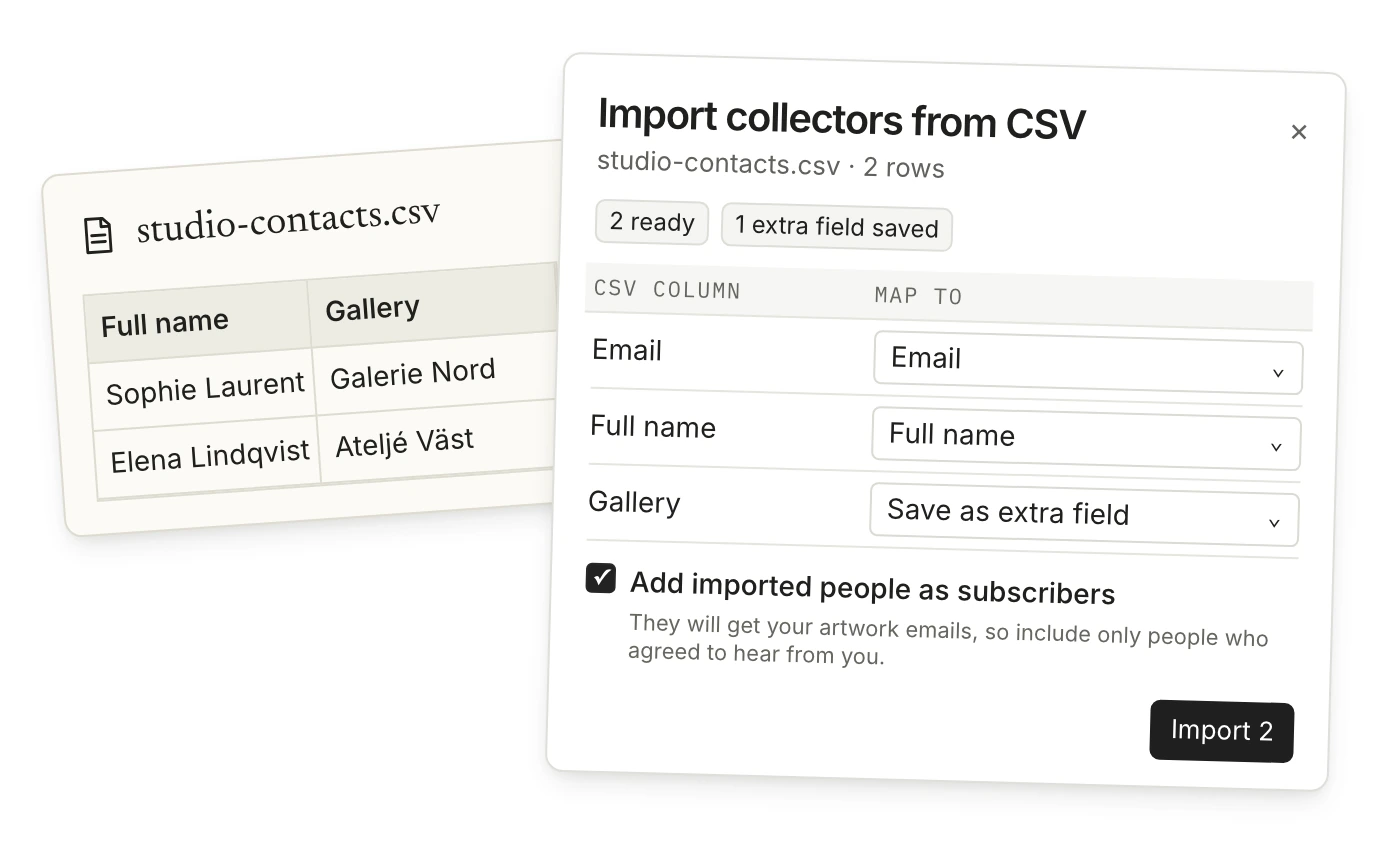
Bring a CSV export from Mailchimp, Excel, Google Sheets or your gallery records. Each file can contain up to 5,000 rows and be up to 5 MB.
Review the suggested column mappings before importing. Email connects a row to an existing contact. You can keep columns such as Gallery or Notes as extra fields on the person’s record.
Add imported people as subscribers is selected by default. Leave it on only for people who agreed to receive your artwork emails. Clear it to import contacts without subscribing them. An import respects earlier unsubscribes.
Automatic artwork update emails
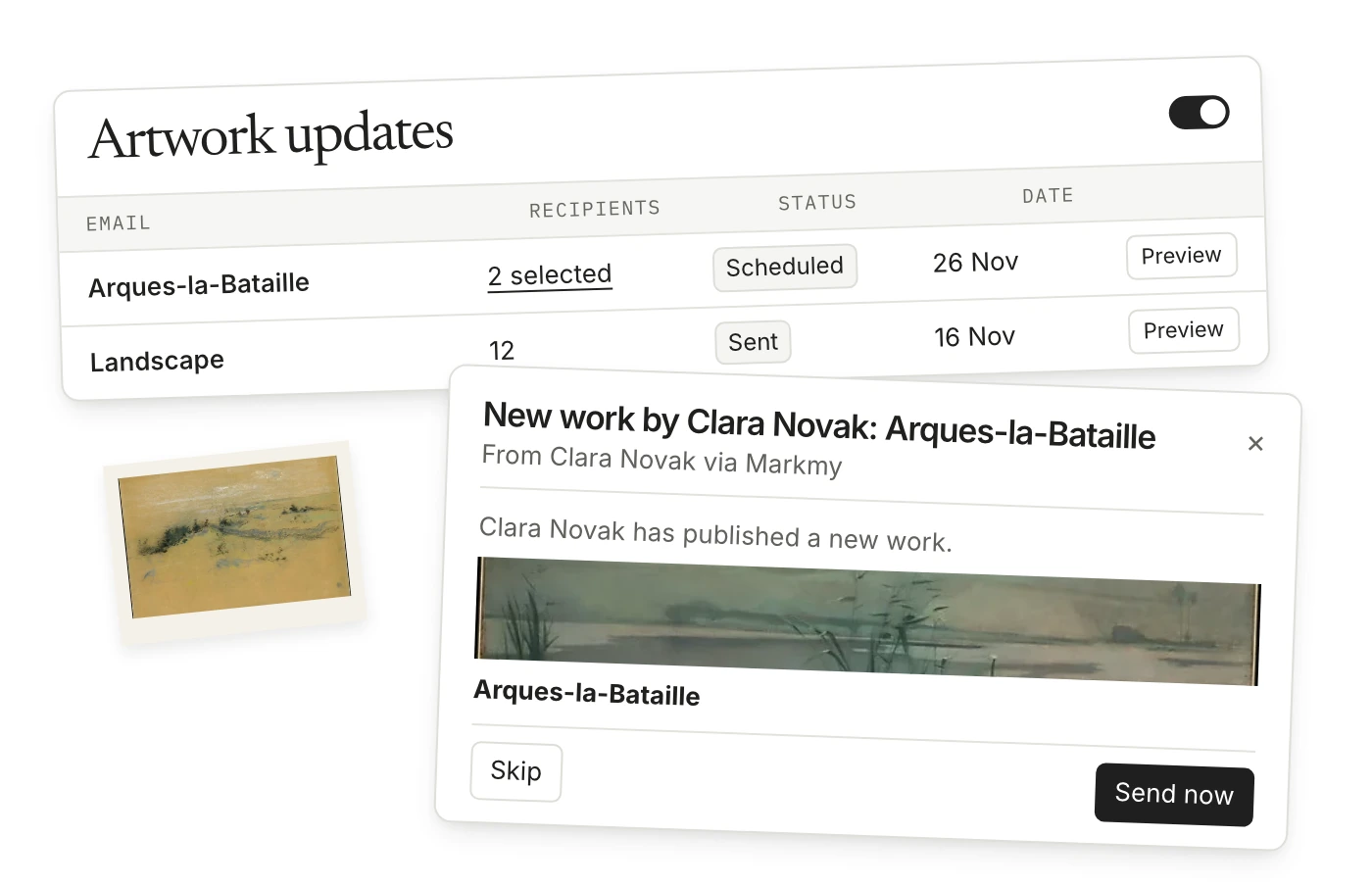
Open Automated emails to see the next scheduled update and your sent history. Select Preview to read the email with its artwork images and links. From the scheduled preview, you can skip that batch or send it early when Send now is available.
With artwork updates on, new works that appear on your public profile are grouped together. The batch is scheduled for 24 hours after the newest work or 72 hours after the oldest, whichever comes first. There is always at least a week between artwork update emails, including when you use Send now.
Your first catalogue import, private works and works published while updates are off are excluded. Each update includes an unsubscribe link.
Choose who receives the next update
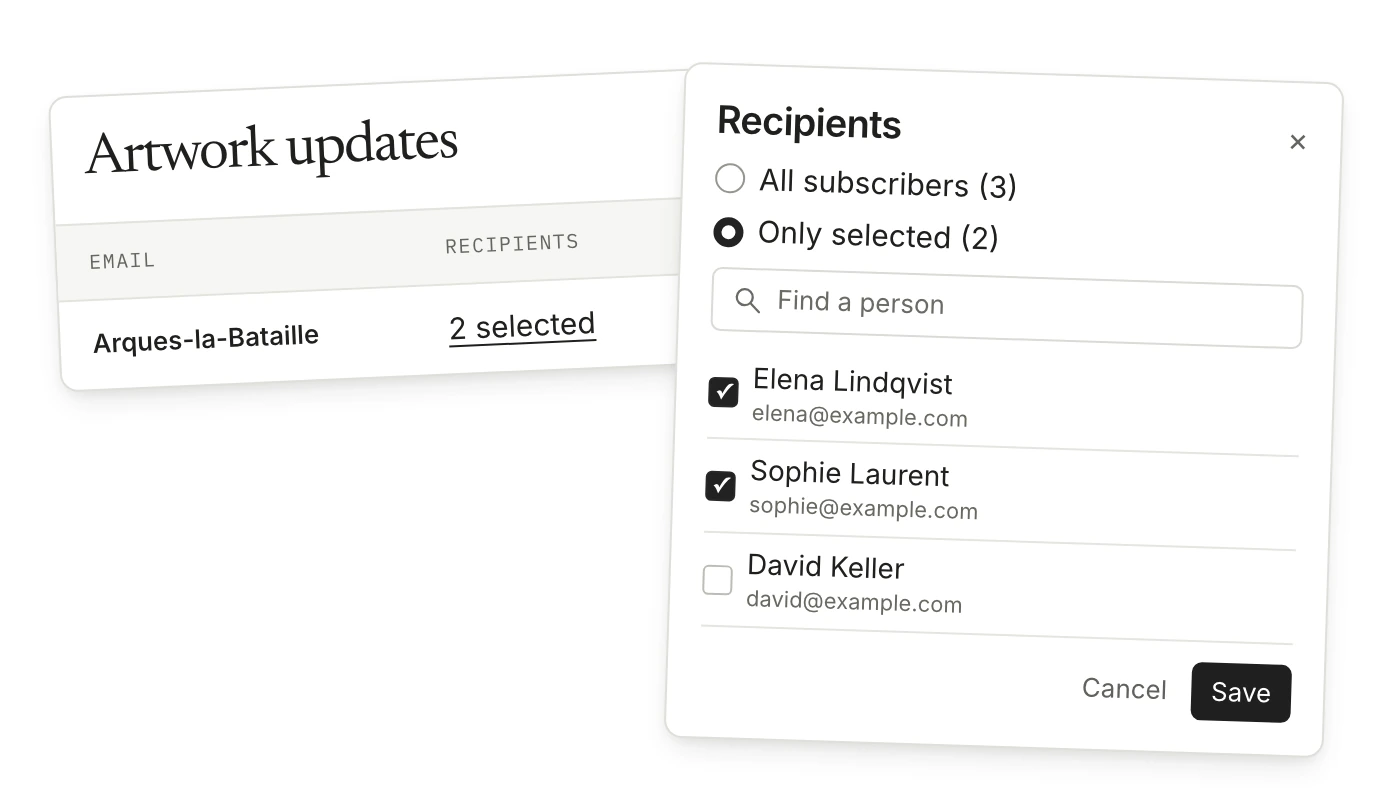
The scheduled email starts with all eligible subscribers. Select its recipient count to open Recipients. Choose Only selected, find the people you want and save your selection.
This choice applies to that email. The following update starts with all eligible subscribers again. Hidden contacts, unsubscribed people and people still awaiting confirmation are excluded from delivery.
Your audience, right next to your work
When someone returns to ask about a print, their earlier messages are there with the work. When you publish a new one, you can see the email your subscribers will receive before it goes out.